
PrestaShop optimization: how to speed up your store step by step
A practical guide to improve PrestaShop speed, Core Web Vitals, hosting, cache, images, modules and database performance.
Article summary
- Speed is revenue: every extra second of loading time can reduce conversion rate by 7%. On a store with 20,000 visits per month, that can mean thousands of euros lost every month.
- The 3 levers that change everything: hosting, which is often undersized, native PrestaShop cache, which is often poorly configured, and images, which are rarely optimized properly. These three points alone can sometimes add 20 to 40 points to a PageSpeed score.
- What it changes in practice: better Core Web Vitals means better Google visibility, fewer abandonments and more sales, without changing your catalog or your prices.
Why PrestaShop speed directly impacts your sales
A slow PrestaShop store does not only frustrate visitors. It costs you money every day, silently.
Core Web Vitals: LCP, CLS and INP in plain English
Google measures the quality of your store with three metrics called Core Web Vitals. You do not need to be a developer to understand them.
LCP (Largest Contentful Paint): the time before the main element of the page, often the product image or hero banner, becomes visible. Target: under 2.5 seconds. Beyond that, Google considers the page slow.
CLS (Cumulative Layout Shift): the visual stability of the page while it loads. If you have ever clicked a button that moved at the last moment, that is bad CLS. Target: below 0.1.
INP (Interaction to Next Paint): how responsive your site is after clicks and interactions. It replaced FID in March 2024. Target: under 200 milliseconds.
These metrics are measured on real Chrome user sessions. Google uses the 75th percentile: in practice, 75% of your visitors need to have a good experience for the page to be considered healthy.
What does one lost second cost?
The numbers are clear:
- -7% conversion per additional second of loading time
- A page going from 4 to 2 seconds can gain around +14% conversion
- Amazon famously calculated that 100 ms of latency could mean -1% sales
Concrete example: a store with 20,000 visitors per month, a 2% conversion rate and an average order value of EUR 80 may lose around EUR 4,800 in monthly revenue if it loads in 4 seconds instead of 2. That is more than EUR 57,000 per year.
SEO impact: what Google really measures
Google has included Core Web Vitals in its ranking signals since 2021. The rule is simple: when content quality is comparable, the faster page has an advantage.
But the SEO impact goes beyond rankings. A slow site creates bounce, short visits and abandoned sessions. Those behavioral signals tell search engines that the experience is weak.
Only a minority of PrestaShop stores pass all Core Web Vitals at the same time. The good news is that PrestaShop is highly optimizable. With the right configuration, a store can reach strong mobile scores and load in under 2 seconds.
Diagnosis: how to measure your PrestaShop performance
Before optimizing anything, you need to measure. Here are the three tools I usually use, in order.
Google PageSpeed Insights: read the results without being a developer
is the starting point. Enter your store URL and you get two scores: mobile and desktop.
Always read the mobile score first. Google uses mobile-first indexing. A desktop score of 90 with a mobile score of 35 is still a problem.
What to look at first:
- LCP: if it is an image, it probably needs preloading and WebP
- Total Blocking Time (TBT): reveals JavaScript that blocks rendering
- Opportunities: a list of improvements with estimated time savings
Keep PageSpeed in perspective before panicking: PageSpeed Insights actually shows two types of information. First, it uses real visitor data: Google observes how your site loads for actual users, then averages those signals over 28 days. These are the same signals you can find in Google Search Console under Experience > Core Web Vitals. Second, it runs an automatic test when you click “Analyze”: Google reloads one page under deliberately difficult conditions, with a low-powered phone, a slow mobile connection and no prepared cache. That is why the mobile score can look harsh, even when your customers do not always experience something that bad. On a PrestaShop store, a mobile score around 50-60 can already be a decent base if the real Core Web Vitals are improving. The goal is not to remove every warning, but to fix what actually matters on important pages: home, categories, product pages and checkout.
PrestaShop Profiler: the underestimated internal tool
This is the most powerful tool to diagnose a slow store, and one of the least known by merchants.
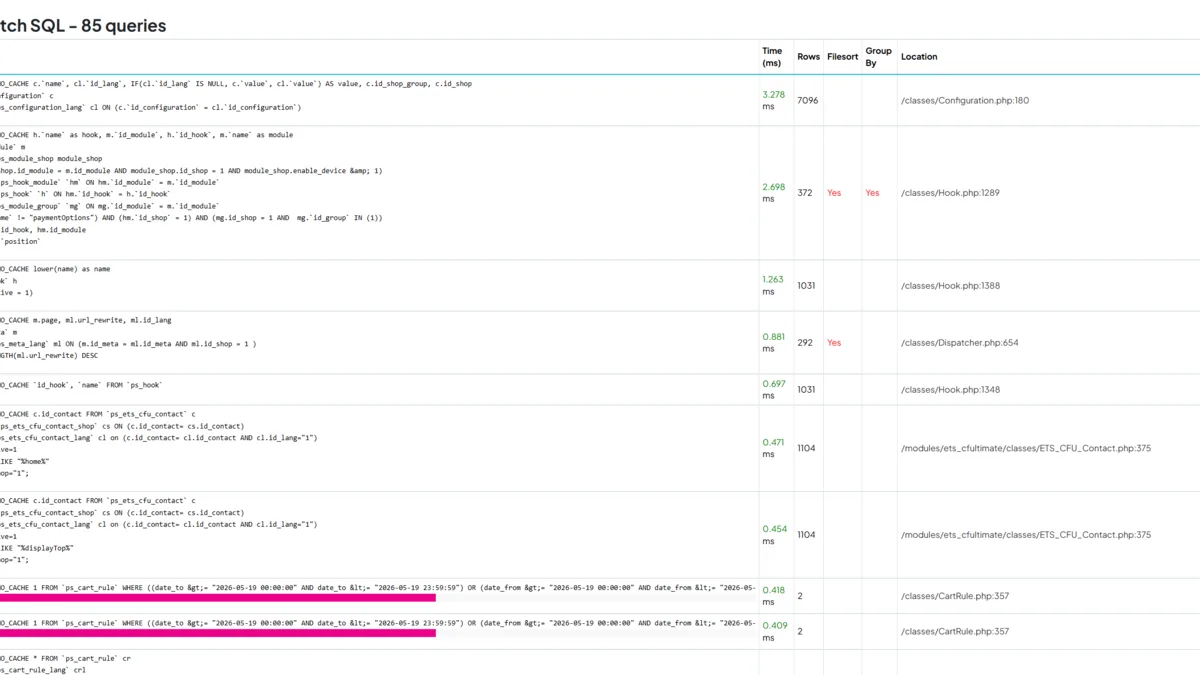
The native PrestaShop Profiler can be enabled from the back office starting with PrestaShop 8, under Advanced Parameters > Performance > Debug profiler. On PrestaShop 1.7, this setting is not available by default in the back office: you need to edit a site file to enable it properly. Once enabled, it displays the full breakdown at the bottom of each page: SQL queries, hook execution times and memory usage.
Important: the Debug profiler is not the same thing as classic debug mode. Debug mode displays PHP errors. The profiler analyzes performance. These are two different uses.
What to look for in the Profiler:
- The
initContentsection: if it is abnormally long, a module or SQL query is probably involved - Duplicated SQL queries: often a sign of poorly coded modules
- Overloaded hooks: too many modules attached to
displayHeader
Disable the Profiler as soon as the diagnosis is finished. Never leave it active in production.
GTmetrix and WebPageTest: when to use them
GTmetrix is useful for visual waterfall analysis. It shows which resources block rendering.
WebPageTest is more advanced. It can test from different locations, simulate connections and compare before/after versions.
For a quick diagnosis, PageSpeed Insights is enough. For a deeper audit, combine all three.
The 6 highest-impact optimizations
Here are the optimizations ranked by impact and effort. Start from the top.
1. Hosting: the foundation too many stores ignore
This is the most underestimated lever. Shared hosting divides CPU, RAM and I/O between many websites. If another site on the server gets a traffic spike, your store can slow down even if you did nothing wrong.
Minimum recommended configuration for a production PrestaShop store:
- VPS, not basic shared hosting
- At least 4 GB RAM
- NVMe SSD
- PHP 8.1 or higher with OPcache enabled
- LiteSpeed or Nginx when possible
PHP 8.1+ brings significant performance gains over older versions. If your store still runs on PHP 7.x, this is usually one of the first priorities.
If you are not comfortable assessing your infrastructure, this is exactly the kind of task a PrestaShop maintenance freelancer can handle quickly.
2. Cache: enable it and configure it properly
PrestaShop includes a powerful native cache system under Advanced Parameters > Performance. There are two levels to configure.
CCC (Combine, Compress, Cache) combines and minifies CSS and JavaScript files, reduces HTTP requests and compresses assets. It should be enabled and tested carefully.
CCC settings to enable:
- Smart cache for CSS
- Smart cache for JavaScript
- Apache optimization
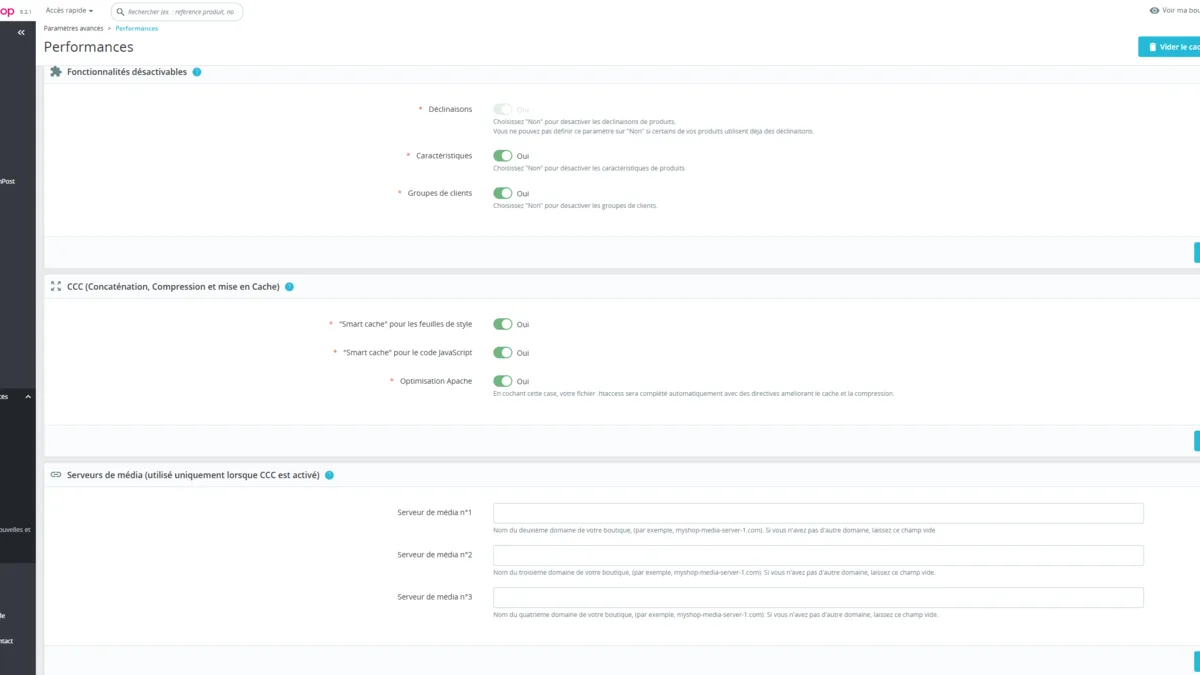
Server cache: in PrestaShop’s native Performance screen, the available options are usually Memcached, APC or Xcache depending on the server environment. Redis is not shown there by default: it may exist through a specific server setup, a module or a more advanced architecture, but it is not a native option visible in Advanced Parameters > Performance. For most small and medium stores, start with CCC, Smarty, PHP OPcache and, if available, Memcached before looking for Redis.
Golden rule: always clear the cache after a theme or module change. Stale cache can show outdated content to customers.
3. Images: compression and WebP
Images are the first cause of poor LCP. On many product pages, the main product image is the LCP element. If it is not optimized, the score collapses.
WebP is non-negotiable in 2026. It offers better compression than JPEG for similar visual quality. PrestaShop 8+ and PrestaShop 9 support WebP more naturally than older versions.
Concrete actions:
- Convert existing images to WebP
- Avoid uploading product images over 200 KB
- Define explicit width and height to avoid CLS
- Enable lazy loading for off-screen images
WebP conversion and compression modules are available on the official PrestaShop marketplace. The simplest option is to search directly on .
4. Modules: identify what slows the store down
Modules are one of the main reasons PrestaShop stores become slow. Each active module can attach to hooks and execute code on every page load, even when it displays nothing.
The modules I most often see hurting performance are poorly configured live chat modules. They load scripts synchronously in the <head> and block the entire rendering path.
Diagnosis method:
- Enable the PrestaShop Profiler
- Check
displayHeaderandactionFrontControllerSetMedia - Disable suspect modules one by one and measure the impact
Modules to watch first:
- Live chat modules: always load asynchronously
- Third-party statistics modules: often SQL-heavy
- Reassurance modules with heavy animations
- Unused but active modules: disable them
5. Database: cleanup and indexes
A PrestaShop database grows over time: logs, abandoned carts, expired sessions, search history. This accumulates and slows queries down.
Regular cleanup:
- Logs:
ps_logcan contain millions of rows - Abandoned carts:
ps_cartgrows quickly - Sessions:
ps_connectionsandps_guestaccumulate - Search data:
ps_search_wordandps_search_indexneed periodic cleanup
For this cleanup, there are three realistic options: use a specialized module, clean the database yourself if you really know what you are deleting, or ask a freelancer or an agency to do it properly. A full backup is mandatory before any direct database intervention.
For deeper work, check MySQL indexes on frequently queried columns such as id_product, id_category and id_customer. A missing index can turn a 5 ms query into a 500 ms query.
6. Theme: what slows things down silently
A poorly built theme can cancel out every other optimization.
Synchronous JavaScript in the <head> blocks rendering until the script has downloaded and executed.
Unused CSS is common in premium themes that include many features you do not use.
Google Fonts loaded from Google servers are not necessarily a problem if the request is handled properly. First check that the font loading uses font-display: swap, so text does not stay invisible while the font downloads. Local hosting can help in some cases, but it is not always the first lever to pull.
Heavy sliders and carousels are often responsible for poor CLS and high TBT.
On PrestaShop 9, the Hummingbird theme is built with Bootstrap 5, TypeScript and a mobile-first approach. It is designed with Core Web Vitals in mind. On PrestaShop 1.7 or 8 with an aging custom theme, a theme audit is often needed.
Classic mistakes that make a PrestaShop store slow
These mistakes appear on almost every store I audit.
Unused but active modules: a module that is still enabled can keep executing code, even if you no longer use its feature on the store. Disable what you do not actively use.
Images added outside PrestaShop’s native flow: product images and main category images are resized according to PrestaShop’s native image settings. However, visuals added through an independent theme, a page builder or a third-party module do not always go through that processing. For those images, resize, compress and convert them before upload.
Outdated PHP: PHP 7.4 reached end of life in December 2022. PHP 8.0 reached end of life in November 2023. Old PHP versions cost performance and security.
Logs never purged: ps_log can reach several GB on an active store. Clean it regularly and automate rotation.
Debug mode left active in production: this happens more often than expected. Debug mode disables cache and generates extra logs. Check it directly from the back office under Advanced Parameters > Performance > Debug mode, and make sure it is disabled in production.
These points are exactly what a good PrestaShop maintenance contract should prevent from accumulating silently.
What I optimize first for my clients
Here is my real intervention order after 15 years working on PrestaShop stores.
Step 1: Quick audit (30 min): PageSpeed Insights on the home page, a product page and the cart. I note mobile scores and the main opportunities.
Step 2: Hosting and PHP: if the store runs on weak hosting or PHP below 8.1, I start there. This improves every page at once.
Step 3: Cache and CCC: full activation and configuration. The result is often visible quickly.
Step 4: Images: WebP conversion and compression of existing assets. It can take time on a large catalog, but the LCP impact is major.
Step 5: Module audit: Profiler enabled, slow modules identified, disabled or replaced.
Step 6: Theme and JavaScript: defer non-critical scripts, remove unused CSS and check font loading with font-display: swap.
My strong opinion: most merchants start with the wrong lever because PrestaShop is often sold as a stack of visible modules, themes and features. So they look at what they can see: the slider, the chat module, the product page. In reality, the strongest gains often come from what they cannot see: hosting, PHP version, cache, database and theme quality. A fast PrestaShop store is not just a collection of modules; it is a coherent technical system.
On the stores I optimize, the fastest gains usually come from a concrete trio: healthier hosting, properly configured cache and controlled images. A mobile PageSpeed score can sometimes gain 15 to 25 points after a short intervention, but the real objective is perceived speed and stable Core Web Vitals.
Anonymized example: a fashion store with around 800 references had shared hosting, old PHP, no cache, heavy JPEG images and a blocking chat module. After a server migration, PHP update, CCC configuration, WebP conversion and script cleanup, the site became much more stable and usable without changing the catalog or the commercial strategy.
When should you call a PrestaShop freelancer?
Some optimizations are accessible to a motivated merchant: enabling CCC, cleaning logs, disabling unused modules. Others require technical skills.
Call a developer if:
- Your mobile PageSpeed score is below 40 and basic optimizations changed nothing
- You see SQL errors in the Profiler and cannot interpret them
- You need to migrate hosting or PHP
- Your custom theme generates blocking JavaScript
- You are preparing for a high-traffic period
What usually requires a developer:
- SQL query optimization
- Advanced server cache setup or tuning, such as Memcached, Varnish or Redis when the hosting stack actually supports it
- Audit and correction of a third-party module
- Migration to PrestaShop 8 or 9, which often changes the optimization work
If you are considering a migration, read the guide about migrating PrestaShop 1.7 to 8: performance gains can be significant, but the migration itself must be prepared carefully.
For an audit or direct intervention, see my PrestaShop freelance services.
My expert opinion
What is the worst hosting setup you have seen on a client store, and what changed after migration?
The most telling case was an undersized OVH hosting plan with a very limited database that constantly needed cleanup to avoid slowdowns. After migrating the store to o2switch, this type of recurring performance issue disappeared because the server foundation finally became healthier and more predictable.
How do you identify the slow module in under 10 minutes?
I usually enable the PrestaShop profiling mode, then cross-check it with PrestaShop logs and server logs. By looking at expensive hooks, repeated SQL queries and recent errors, I can often identify the responsible module or area very quickly.
What minimum mobile PageSpeed score do you recommend before launching an ad campaign?
I recommend at least 50-60 on mobile before sending significant paid traffic to a store. It is not a perfect score, but it is often the minimum threshold to avoid paying for clicks that are wasted because the experience is too slow.
FAQ
My PrestaShop store is slow: where should I start?
Start by measuring with Google PageSpeed Insights. Test your home page, a product page and the cart on mobile. Note the scores and the first opportunities. If your mobile score is below 50, check PHP version, CCC activation and image weight first.
What is the difference between PrestaShop cache and server cache?
PrestaShop cache, including CCC and Smarty, handles templates and CSS/JS assets at application level. Server cache, such as Memcached, APC/Xcache depending on the version, Varnish or sometimes Redis through a specific module or server setup, stores data or pages in memory to reduce repeated server work. They are complementary.
Is WebP compatible with all browsers?
Yes. WebP has been supported by modern browsers for years. On PrestaShop 8+, WebP generation is easier. On older versions, a module or server configuration may be needed.
How many modules can I have without hurting performance?
There is no magic number. Code quality matters more than module count. One poorly coded module can do more damage than twenty clean modules. Disable what you do not use and check active modules with the Profiler.
My desktop PageSpeed score is good but mobile is poor. Why?
This is very common. Mobile often suffers from oversized images, blocking JavaScript and themes that were not built mobile-first. Google uses mobile-first indexing, so mobile should be the priority.
Interactive calculator
How much is your slow PrestaShop store costing you?
Enter your monthly visits, average order value and current conversion rate to estimate the yearly revenue potentially lost because of slow pages.
Estimated yearly revenue
Potential yearly gain
Indicative estimate based on a cautious conversion uplift after optimization. It does not replace an audit, but gives a useful order of magnitude.
Speed up my PrestaShop store